Step by Step Instruction:
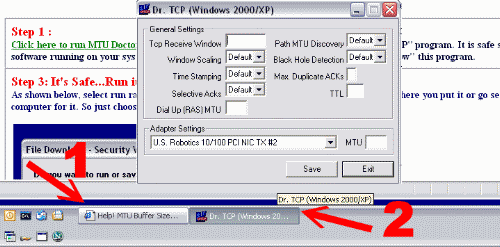
It is best to read each step before taking action. Since you will have two windows open,
1: for this instruction page &
2: For Doctor TCP
you can just switch back and forth between one and the other by clicking on the task bar blocks at the bottom of monitor screen as shown here.
|
Step 1 :
Click here to run MTU Doctor .This will initiate the download and launch of the "Doctor TCP" program. It is safe so if you have any software running on your system that blocks or stops downloaded scripts, just select to 'Allow" this program. |
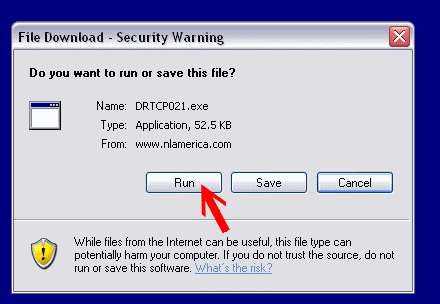
Step 3: It's Safe...Run it !
As shown below, select run rather than save. If you save then you will have to remember where you put it or go searching your computer for it. So just choose "run".
|
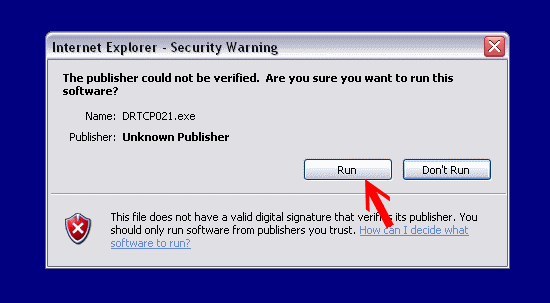
Step 3: It's still Safe...Run it !
Depending on your systems configuration you may see another security screen such as this. If so, as shown below, select run.
|
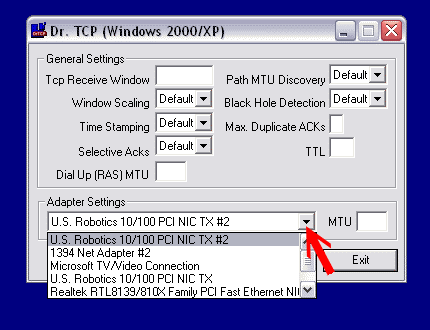
Step 4: Select dropdown menu devices !
Once the small download is complete, the "Doctor TCP" program will launch. Go to the bottom of the program window and select the little down arrow to drop down the selection menu. Select the first item in the dropdown menu.
|
Step 5: Enter your new setting!
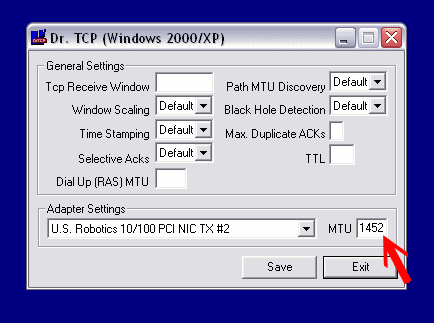
Once you have selected the first item in the dropdown menu. Use your mouse and click inside the small MTU field. Then type in the number " 1452 " as shown below.
|
Step 6: Repeat Steps 4 and 5!
Once you have selected the first item and changed or entered the MTU setting to read 1452, repeat step 4 & 5 until you have selected all items in the dropdown menu and entered 1452 for each one.
|
Step 7: Save It !
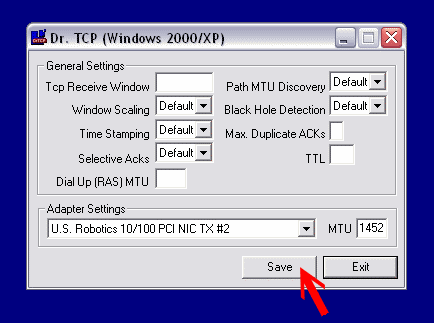
Once you have selected all of the items in the dropdown menu and entered 1452 as the MTU setting, click on the "save" button.
|
Step 8: You Are Done! Time to exit!
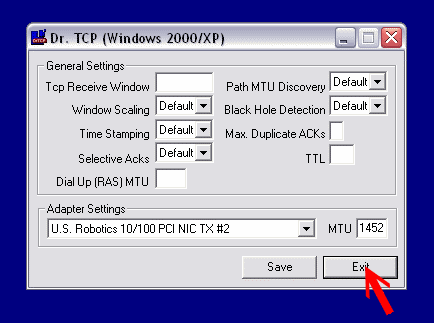
Once you have clicked on the "save" button, click on the "exit" button. This will shut down the "Doctor TCP" program. And your finished!
|
Step 9: Tell us You Are Done!
After filling in the short form below to let us know your are done, you need to "RESTART" your computer to make sure the settings are recorded by your system registry.
|